

 I was working with a newish Project Manager the other day and we were building a data collection tool to log some intermittent errors and she was fussing about how to build the tool to get data. Should she email a Word form to the team? I finally asked her what’s wrong with Excel?
I suggested she build the form in Excel, post it up to SharePoint, that way everybody on the team has access to the same document and you don’t have to tease the data out of 50 different emails.
You know Bob the Boss likes clear directions with bullet points on his forms and you can’t do that with Excel.
Say what? – Well newbie you can make pretty text in Excel. Here’s how…..
Use the right font
W hen you have a lot of information to present – the temptation might be to use a small font – don’t people will ignore it if they can’t read it. When it comes to choosing the best font for displaying both text and numbers, the font you choose matters.
From a readability point of view, the Times New Roman font is considered to be easier and faster to read compared with other fonts. Times New Roman is a serif typeface introduced in 1932 by the British newspaper The Times. The Times New Roman font’s serif design makes reading easier because the characters are more recognizable. But styles evolve over time:
- Times New Roman font was fashionable in the 1970s;
- The Helvetica font was the go-to font in the 1980s;
- The Arial font was dominant during the 1990s;
- The Verdana font was widely adopted in the 2000s:
- The Calibri font is widely used today.
Microsoft (MSFT) introduced Calibri with Windows Vista in 2006. It is basically a skinnier version of the Arial font. The Calibri font was specifically engineered to be highly legible for both alphabet and numerical characters on today’s smaller handheld devices.
Now that you have made a good choice for your font use it. The Font list is on the Home ribbon- Click font and select the font you want to use. (No Wing Dings or anything that starts with Gothic right?)
Break up the text
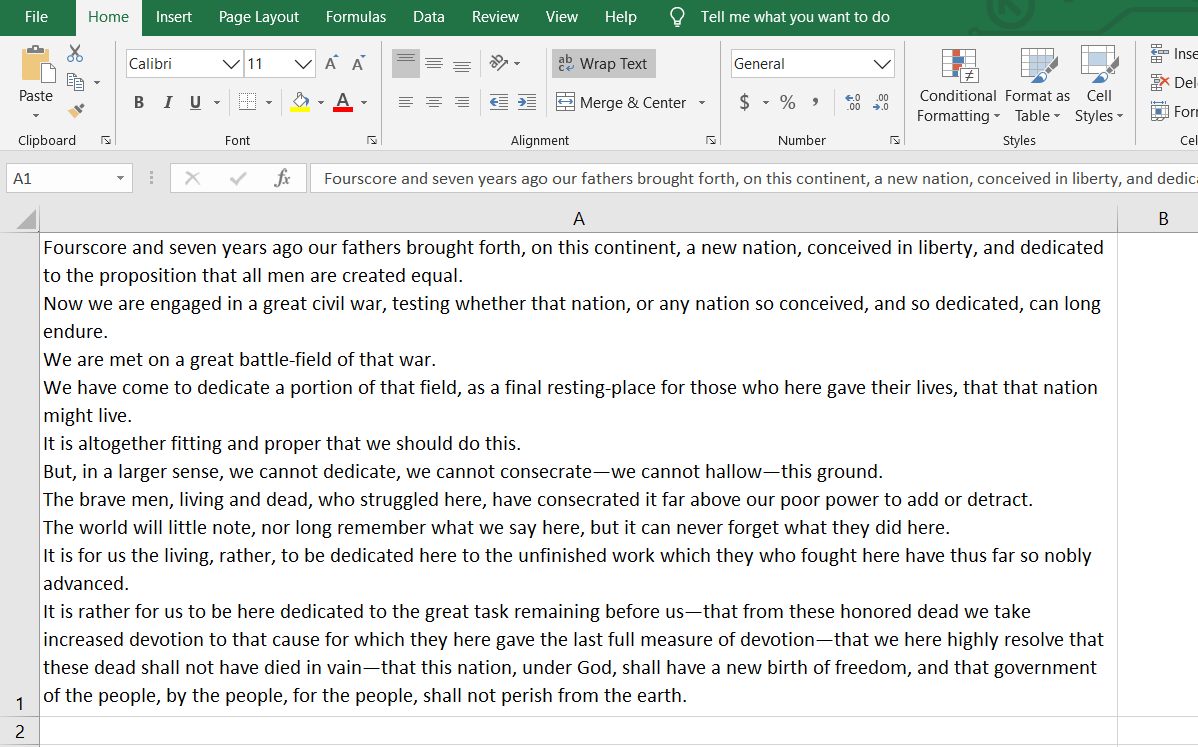
When you have a lot of information to explain about a certain task, it’s helpful to include a few paragraphs in one cell. By default, a bunch of text in a cell is truly unreadable. But – you can make Excel display pretty paragraphs.
First your need to expand the column width. The column width will determine how many lines are needed to display the text. Use one wide column rather than multiple rows for lengthy text entries for greater readability and for any lists of data.
To expand the column width put your cursor on the cell boundary and left click on your mouse and drag your column out. Don’t worry about the final column width yet – you can adjust it again and again and again.
Now that you have a bigger column – wrap your text. Click in the cells (or an entire row or column) where you want to display your text. Then click on the Wrap Text button on the Home ribbon.
Or you can right-click on the selection and choose Format Cells, pick the Alignment Tab, and check the option for Wrap Text, finish with OK.
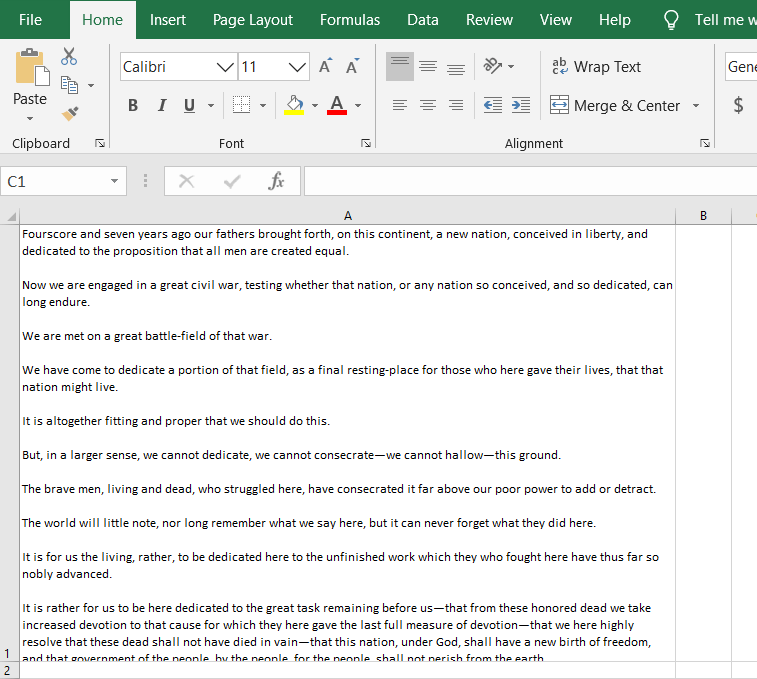
Now – type away! Add as much content as you’d like to the cell. You will have a big blob of text. To improve its readability – insert line breaks in the cell. Line breaks make dense information easier to digest by making it easier to read.
When you’re at a point where you’d like to start a new line, simply press [Alt] + [Enter].
Want to add a blank line to create paragraphs in your cell? Press [Alt] + [Enter] twice.
Add bullet points to an Excel cell
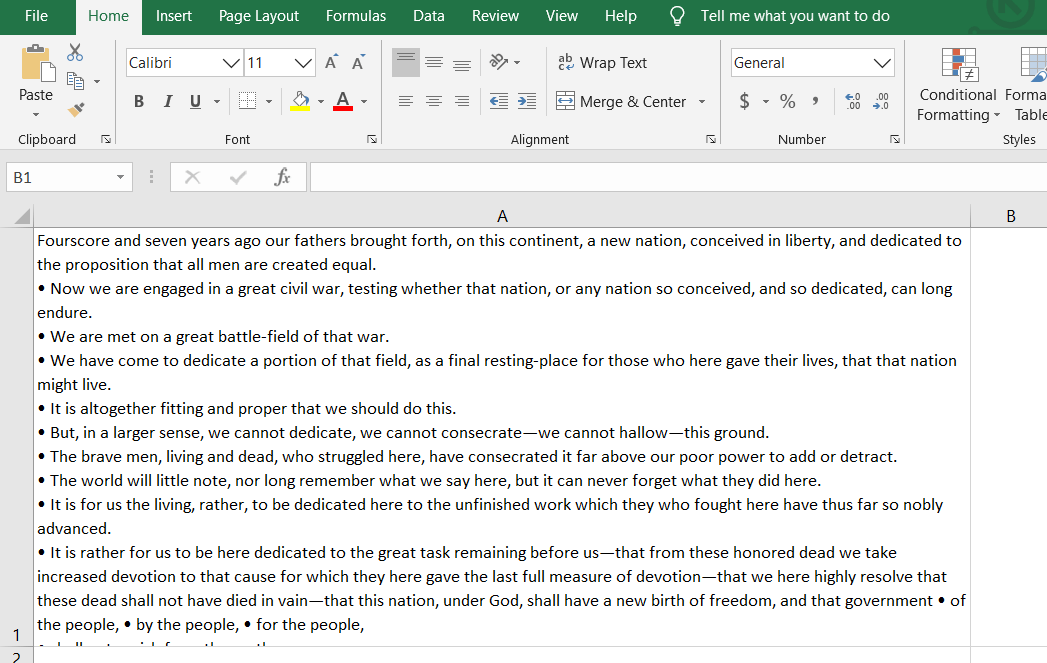
You can also add bullet points in an Excel cell. Bullet points are a great way to concisely convey important pieces of information or instructions. You can easily add bullet points to any cell in Excel spreadsheets.
- Double-click on the cell you want to add the bullet to.
- Position the cursor at the point that you want to insert a bullet.
- Hold down the Alt Key and type 0149 from the numeric keypad.
- A bullet appears.
With these easy steps, you can make Microsoft Excel dance for you.
rb-
This is for Windows users – Mac users – your mileage may vary on some of these tips and tricks – but it should be doable.
The transcript of President Lincoln’s Gettysburg address is courtesy of Cornell University.
Related article
Ralph Bach has been in IT long enough to know better and has blogged from his Bach Seat about IT, careers, and anything else that catches his attention since 2005. You can follow him on LinkedIn, Facebook, and Twitter. Email the Bach Seat here.